Breakdown Pro

  1. Breakdown Pro for Nuke

  2. new version Breakdown Pro_v1.3

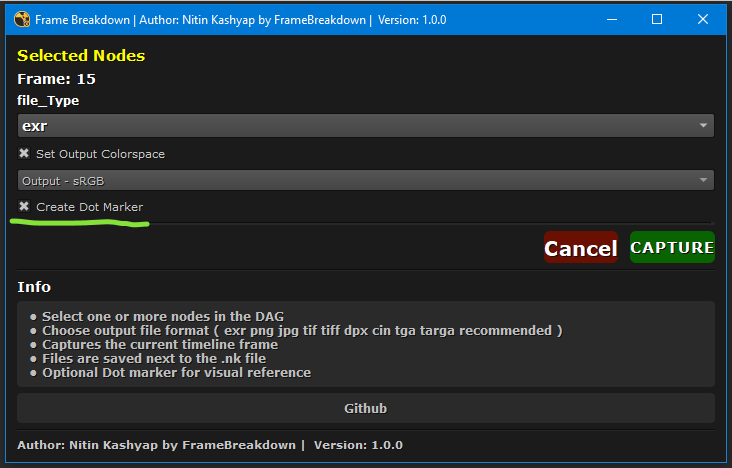
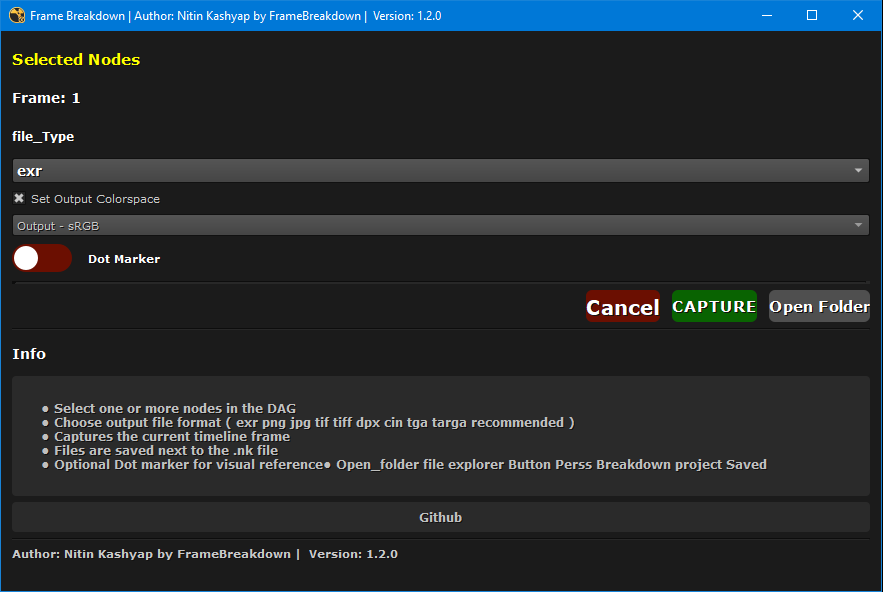
  • Breakdown Pro is a professional Nuke tool that captures a single frame from selected nodes and saves breakdown images automatically. It is designed for fast look-dev, reviews, and shot breakdowns.

First submitted: 6 January 2026

Updated: 6 September 2026

Author: Nitin Kashyap

Website: https://github.com/Nitinkashyap96/Breakdown_Pro

Compatible Nuke versions: 12.2 or later

Compatibility: Linux, Mac, Windows

  1. Features

    • Capture current frame from selected nodes

    • Works with one or multiple nodes

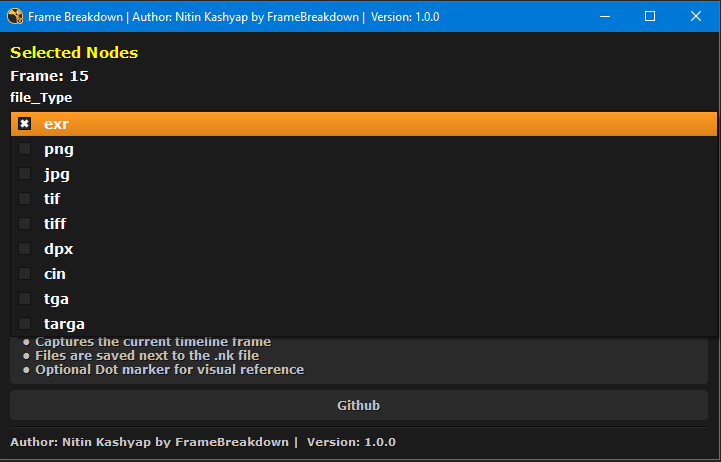
    • Supported formats:

      • exr

      • png, jpg

      • tif, tiff

      • dpx, cin

      • tga, targa

    • Optional output colorspace control

    • Optional Dot Marker creation in DAG

    • Auto creates output folder

    • Auto deletes temporary Write nodes

    • Sound notification after capture

    • Works on Windows / Linux / macOS

    • Compatible with Nuke 12 – 17

    • Deep Node Detection — Breakdown Pro

      Breakdown Pro automatically detects when a node is carrying a Deep data stream and switches the output to a DeepWrite node instead of a regular Write node, so you never have to configure this by hand.

      How it works

      When you capture a frame, each selected node is checked with _is_deep_node() before a Write node is created:

      1. Walk upstream from the node, across all inputs (main pipe and side inputs, e.g. the B-input on DeepMerge) — not just input 0.

      2. Flag as Deep if any upstream node's class name starts with "Deep":

        • DeepRead

        • DeepMerge

        • DeepRecolor

        • DeepCrop

        • DeepReformat

        • DeepColorCorrect

        • DeepExpression

        • DeepTransform

        • DeepHoldout

        • DeepFromImage

        • ...and any other Deep* class, since the check is prefix-based and doesn't need a hardcoded list.

      3. Stop propagating Deep-ness if a DeepToImage node is hit while walking upstream — everything downstream of it is flat again.

      4. Re-enter Deep if a DeepFromImage node is hit — it converts a flat stream back into Deep.

      5. Cycle-safe: a visited set prevents infinite loops on unusual graphs.

      What happens once a node is flagged Deep

      Deep stream

      Flat stream

      Node created

      DeepWrite

      Write

      File extension

      forced to .exr

      your chosen format

      channels knob

      not set (doesn't exist on DeepWrite)

      set to rgba

      colorspace knob

      set only if the knob exists on your Nuke version, and only if the colorspace checkbox is on

      set per your UI selection

      first / last / use_limit

      set to current frame

      set to current frame

      Included in "last rendered image" preview

      No — Deep EXRs aren't previewed

      Yes, for standard image formats

      Each Write node is executed for the single frame and then deleted immediately, so your script stays clean — no leftover Write/DeepWrite nodes after capture.

      Why side-inputs matter

      Earlier versions only followed a node's main pipe (input(0)). A node like DeepMerge can take a flat image on input 0 and a Deep stream on input 1 (or vice versa) — in that setup, checking only input 0 could miss the Deep source entirely. The detector now checks every input on a node, so mixed flat/Deep branches are caught correctly.

      Known limitations

      • Detection is based on class name only — a custom or third-party node that produces Deep data without a Deep-prefixed class name won't be recognized automatically.

      • DeepWrite colorspace support varies by Nuke version; the tool checks for the knob's existence before touching it, so on versions where it's absent, colorspace is simply left at the DeepWrite default.

      • Deep streams are always written as .exr, regardless of the format selected in the UI dropdown (this is a Nuke limitation, not a Breakdown Pro choice — DeepWrite doesn't support non-EXR containers reliably across versions).

    • New Version add file explorer Open_Folder Button add Breakdown Folder

    • add dot marker ToggleSwitch Button

  2. Installation

    Step 1: Copy Folder

    Copy .folder to your .nuke folder.

    Windows

    C:/Users/<username>/.nuke/
    

    Linux / macOS

    ~/.nuke/
    

  3. Step 2: Add Init Entry

    Open (or create) init.py inside .nuke and add:

    nuke.pluginAddPath("./Frame Breakdown")

    Restart Nuke.

  4. How to Use

    1. Open your Nuke script

    2. Save the script

    3. Select one or more nodes in the DAG

    4. Open:

      Nuke → NK_Tools → Frame Breakdown
      
    5. Choose file format

    6. (Optional) Enable colorspace

    7. (Optional) Enable Dot Marker

    8. Click CAPTURE

  5. Output Location

    Files are saved next to your .nk file:

    /your_project/breakdowns/
    

    File Naming

    ScriptName_001_NodeName.1001.exr
    
  6. Dot Marker (Optional)

    • Creates a green Dot below the node

    • Label: Breakdown

    • Helps visually identify breakdown points in the DAG

  7. Colorspace Handling

    • EXR: Written natively with compression

    • Non-EXR: Selected output colorspace is applied

  8. Sound Notification

    • Plays 02.wav if available

    • Falls back to system beep if sound file is missing

  9. Notes

    • Script must be saved before capture

    • Only captures single frame (by design)

    • Safe to use (no changes to original nodes)

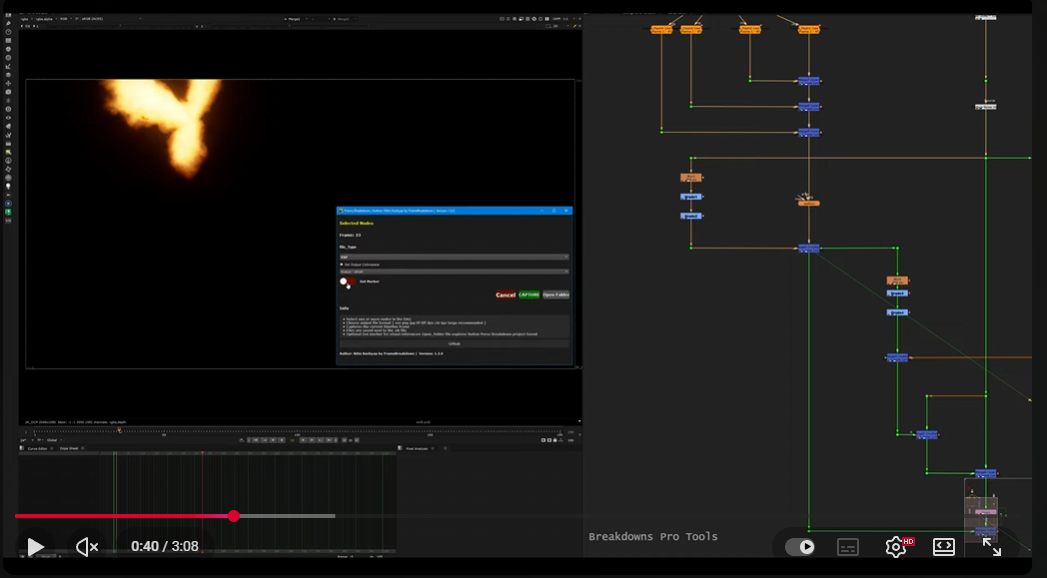
    • Watch Demo Here

MIT License

Copyright (c) 2026 Nitin Kashyap

Permission is hereby granted, free of charge, to any person obtaining a copy
of this software and associated documentation files (the "Software"), to deal
in the Software without restriction, including without limitation the rights
to use, copy, modify, merge, publish, distribute, sublicense, and/or sell
copies of the Software, and to permit persons to whom the Software is
furnished to do so, subject to the following conditions:

The above copyright notice and this permission notice shall be included in all
copies or substantial portions of the Software.

THE SOFTWARE IS PROVIDED "AS IS", WITHOUT WARRANTY OF ANY KIND, EXPRESS OR
IMPLIED, INCLUDING BUT NOT LIMITED TO THE WARRANTIES OF MERCHANTABILITY,
FITNESS FOR A PARTICULAR PURPOSE AND NONINFRINGEMENT. IN NO EVENT SHALL THE
AUTHORS OR COPYRIGHT HOLDERS BE LIABLE FOR ANY CLAIM, DAMAGES OR OTHER
LIABILITY, WHETHER IN AN ACTION OF CONTRACT, TORT OR OTHERWISE, ARISING FROM,
OUT OF OR IN CONNECTION WITH THE SOFTWARE OR THE USE OR OTHER DEALINGS IN THE
SOFTWARE.

or register to download or rate.

Comments

or register to join the conversation.

Download Verification