SAC Script Auditor is a Fast, Non-destructive, Diagnostic utility tool for Nuke. It performs deep analysis of your Nuke script, identifying errors, Disabled, Heavy nodes, Concatenation breaks, B-Box oversizing, and Channel bloat. The tool marks problematic nodes directly in node graph with color-coded sticky notes, and provides reports inside its own control panel.
SAC_Script Auditor v1.0 🔍
First submitted: 28 May 2026
Author: Sachin raju
Website: https://github.com/SacTools
Compatible Nuke versions: 13.0 or later
Compatibility: Linux, Mac, Windows
Overview
SAC Script Auditor is a Fast, Non-destructive, Diagnostic utility tool for Nuke.
It performs deep analysis of your Nuke script, identifying errors, Disabled, Heavy nodes, Concatenation breaks, B-Box oversizing, and Channel bloat.
The tool marks problematic nodes directly in node graph with color-coded sticky notes, and provides reports inside its own control panel.
Installation
Download the SAC_ScriptAuditor.nk file.
Drag and drop the file into the Node Graph,
or
Use
File > Import Script…
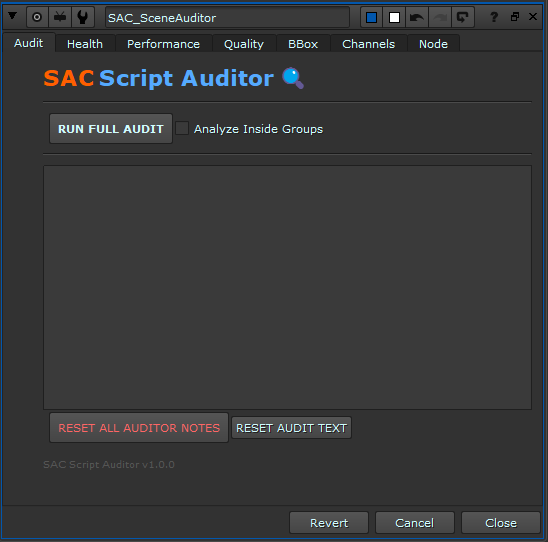
The tool appears as a single NoOp node in your node graph. You can copy/paste it, or save it as a Gizmo or as a toolset for reuse.
Key Benefits
Reduce script debugging time through automated diagnostics
Improve render and playback performance via bottleneck detection
Maintain clean node graphs
Identify structural and logical compositing issues early
Enhance pipeline consistency across artists and shots
Recommended Usage
Shot finaling
re-render validation
Large script cleanup
Shot handoff reviews
Team QC sessions
Key Features
The node is structured into six functional areas, accessible via the custom properties tabs:
1. Audit (Global Script Statistics)
Full Script scan: Analyzes active nodes, omitting non-processing elements such as Dots, viewers, and backdrops.
Recursive Analysis: Optional toggle (
Analyze Inside Groups) allows the auditor to traverse down into Group nodes and Gizmos.Overview Metrics: Displays script file name, global resolution, frame range, and frame rate.
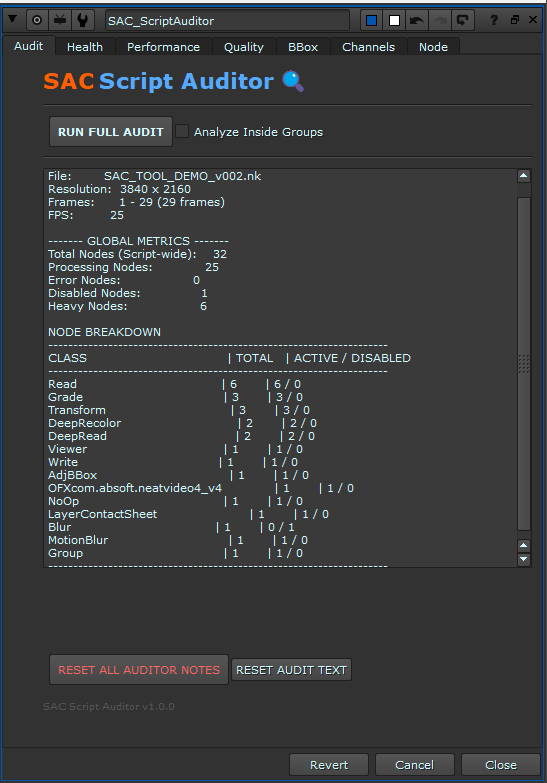
Global Totals: Categorizes and displays the total number of nodes, disabled nodes, error nodes, and heavy processing nodes.
Class Breakdown Table: Generates a formatted plain-text list of all active node classes in the script, sorted by frequency, including active versus disabled counts.
2. Health (Error Triage & Recovery)
Dynamic Error Diagnosis: Detects nodes currently reporting errors (
hasError()) and parses the error strings to provide context-aware troubleshooting advice.Diagnostic Categorization: Recognizes file-read failures, colorspace mismatches, syntax errors in expressions, missing plugins, memory allocations, GPU/driver issues, and licensing errors.
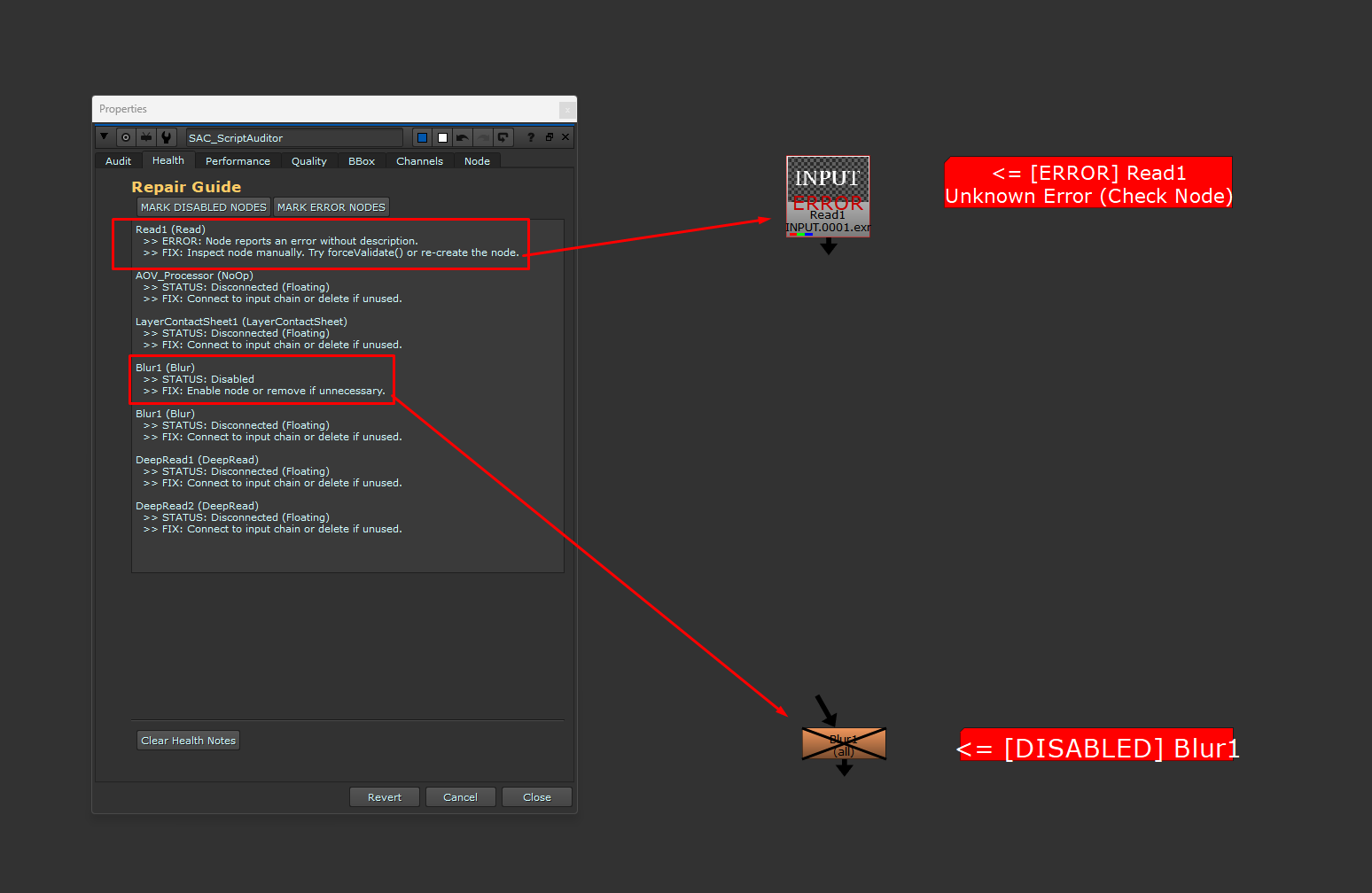
Visual Error Tagging: Generates red
StickyNotemarkers next to faulty nodes, displaying the specific error message and actionable triage advice.
3. Performance (Bottleneck Identification)
Heavy Node Cataloging: Identifies resource-intensive node classes (such as
Deep,Kronos,Denoise,SmartVector,CopyCat,BlinkScript, and heavy temporal/optical-flow nodes).Upstream Caching Advice: Pinpoints where resource utilization is high and suggests caching strategies (e.g., pre-rendering or using the
Precompnode).Spatial Mapping: Generates large sticky note pointing directly to heavy processing nodes in the script.
4. Quality (Concatenation Analysis)
Concatenation Verification: Scans the upstream inputs of standard transform nodes (e.g.,
Transform,Reformat,CornerPin2D,Tracker,GridWarp) to verify if the spatial transformation chain is continuous.Break Detection: Flags instances where a non-transformative node (such as a Crop, Grade, or ColorCorrect) is inserted between transformation nodes, which causes Nuke to resample the image multiple times and degrade image quality.
5. Bounding Box (BBox Control)
BBox vs Format Ratio: Calculates the area of each node's bounding box relative to its format area.
Alert Thresholds: Categorizes bounding boxes exceeding format dimensions:
SAFE: (<10% larger than format): will not highlight but will be mentioned in the report.
OVERKILL: (10-20% larger than format): Highlights potential waste of processing cycles.
DANGER: (>20% larger than format): Highlights severe performance bottlenecks, typically requiring a
CroporBlackOutsideoperation.
Visual Warning StickyNotes: Color-coded markers (Amber for Overkill, Red for Danger) are generated adjacent to the problematic nodes.
6. Channels (Channel & Layer Bloat)
Channel Count Tracking: Identifies nodes processing an excessive number of channels.
Bloat Identification: Flags nodes where new custom channels are injected into the stream or where the total channel count exceeds 50, which can slow down downstream processing.
Visual Marking
Use the MARK … buttons to place sticky notes directly on the nodes that need attention:
Health →
MARK DISABLED NODES,MARK ERROR NODESPerformance →
MARK HEAVY NODESQuality →
MARK CONCAT BREAKSBBox →
MARK LARGE BBOXChannels →
MARK CHANNEL BLOAT
Each sticky note is coloured distinctly:
Tag | Colour | Placement |
|---|---|---|
| Red | Right side |
| Red | Right side |
| Red | Left side |
| Red | Left side |
| Red | Right side |
| Amber | Right side |
| Cyan | Left side |
Sticky notes do not alter your nodes' processing. They are purely informational and can be removed safely.
Cleaning Up
RESET ALL AUDITOR NOTES - Removes every sticky note created by any auditor marker (
[HEAVY],[CONCAT BREAK],[BBOX],[DISABLED],[CHANNELS],[ERROR]).RESET AUDIT TEXT - Clears all report text fields inside the auditor node.
Individual Clear buttons - Each tab has a “Clear … Notes” button to remove only markers of that type.
Tabs & Functions Reference
1. Audit Tab
RUN FULL AUDIT- Performs the complete analysis and populates all reports.Analyze Inside Groups- Toggle to include nodes inside Group nodes.Summary report shows:
Script file name
resolution
frame range
FPS
Total nodes, processing nodes, error nodes, disabled nodes, heavy nodes
Node class breakdown table (total / active / disabled)
2. Health Tab
MARK DISABLED NODES- Attaches a[DISABLED]sticky note to any node with itsdisableknob enabled.MARK ERROR NODES- Attaches an[ERROR]sticky note with the error message to any node reporting an error.health_results- Detailed repair guide: for each error it suggests a likely fix (file missing, OCIO, expression, missing plugin, memory, license).Clear Health Notes- Removes all[ERROR]and[DISABLED]stickies.
3. Performance Tab
MARK HEAVY NODES- Tags nodes that match a built-in list of heavy node classes (Deep, Kronos, Denoise, OFX, Blink, etc.) with a[HEAVY]sticky note.perf_results- Log of all heavy nodes with advice to pre-render or use Precomp.Clear Heavy nodes Notes- Removes[HEAVY]stickies.
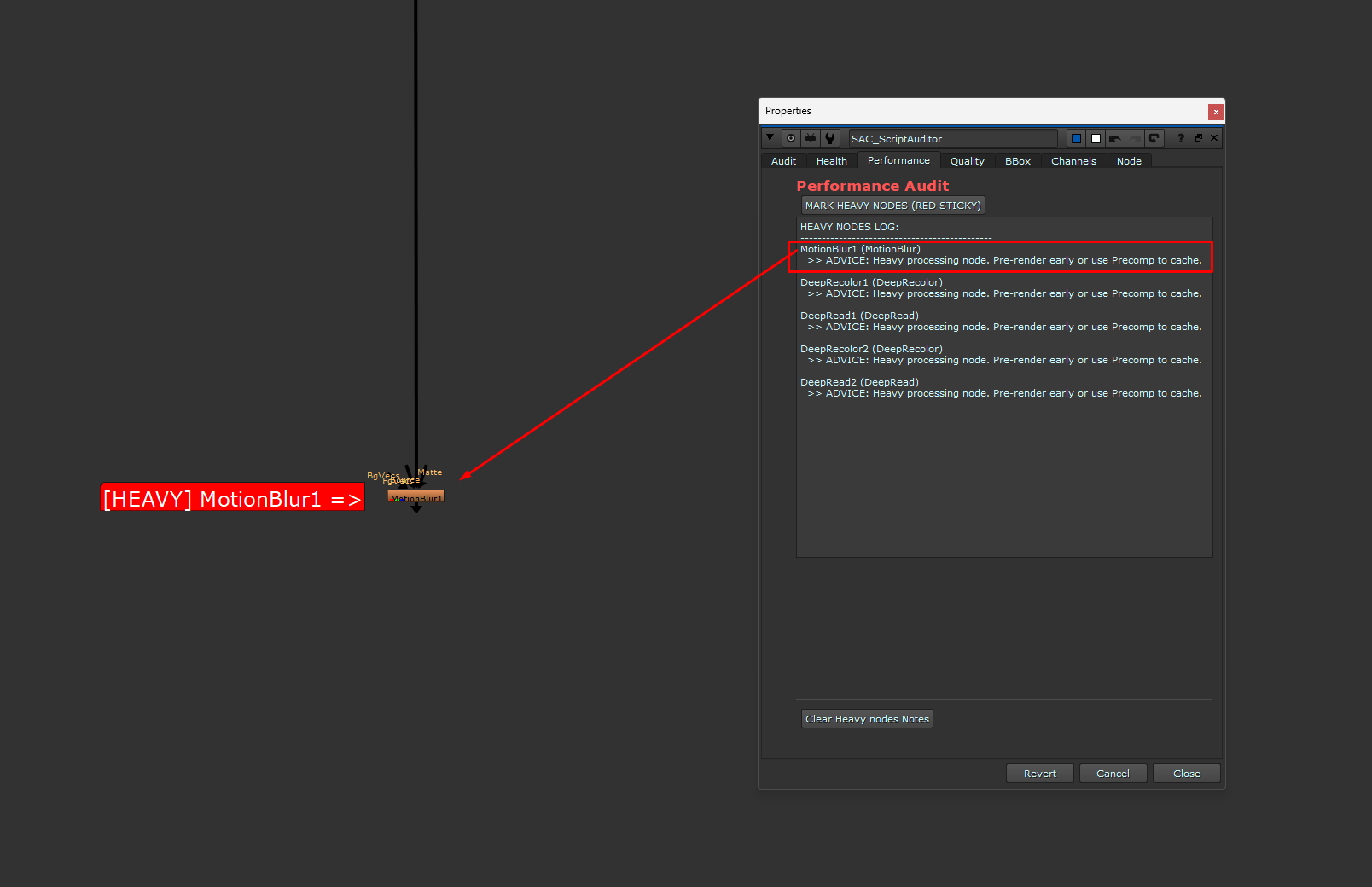
4. Quality (Concatenation) Tab
MARK CONCAT BREAKS- Identifies transform chains broken by non-transform nodes (e.g., a Grade between two Transforms). Marks the interrupting node with[CONCAT BREAK].concat_results- Log of each break with suggested fix (move the interrupter above or below the chain).Clear Quality Notes- Removes[CONCAT BREAK]stickies.
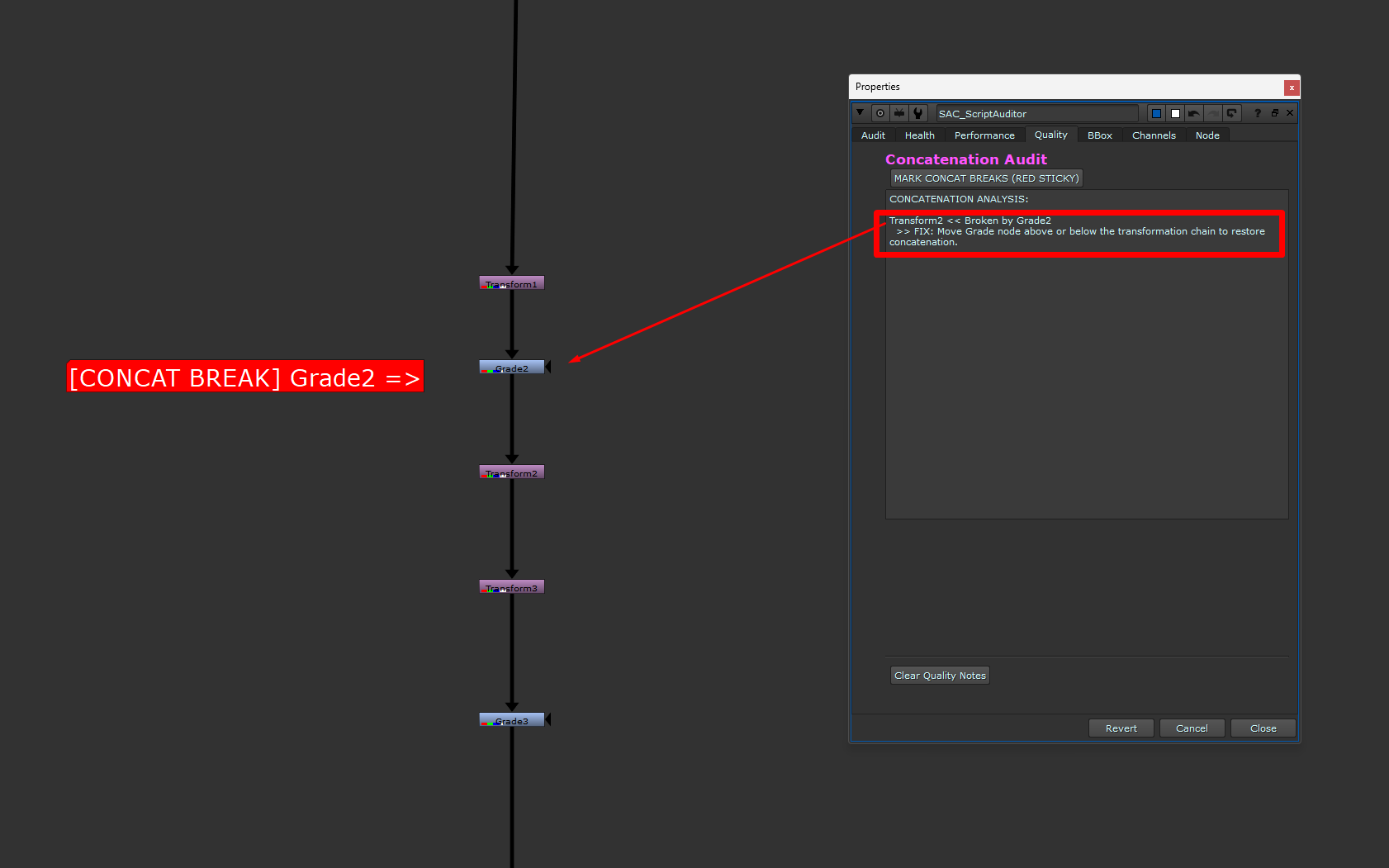
5. BBox Tab
ANALYZE BBOX SIZES- Compares node B-Box area to format area. Reports any node exceeding format by >10% and classifies as SAFE, OVERKILL (10-20%), or DANGER (>20%).MARK LARGE BBOX- Marks nodes with[BBOX]sticky (red for DANGER, amber for OVERKILL).Clear BBox Notes- Removes[BBOX]stickies.
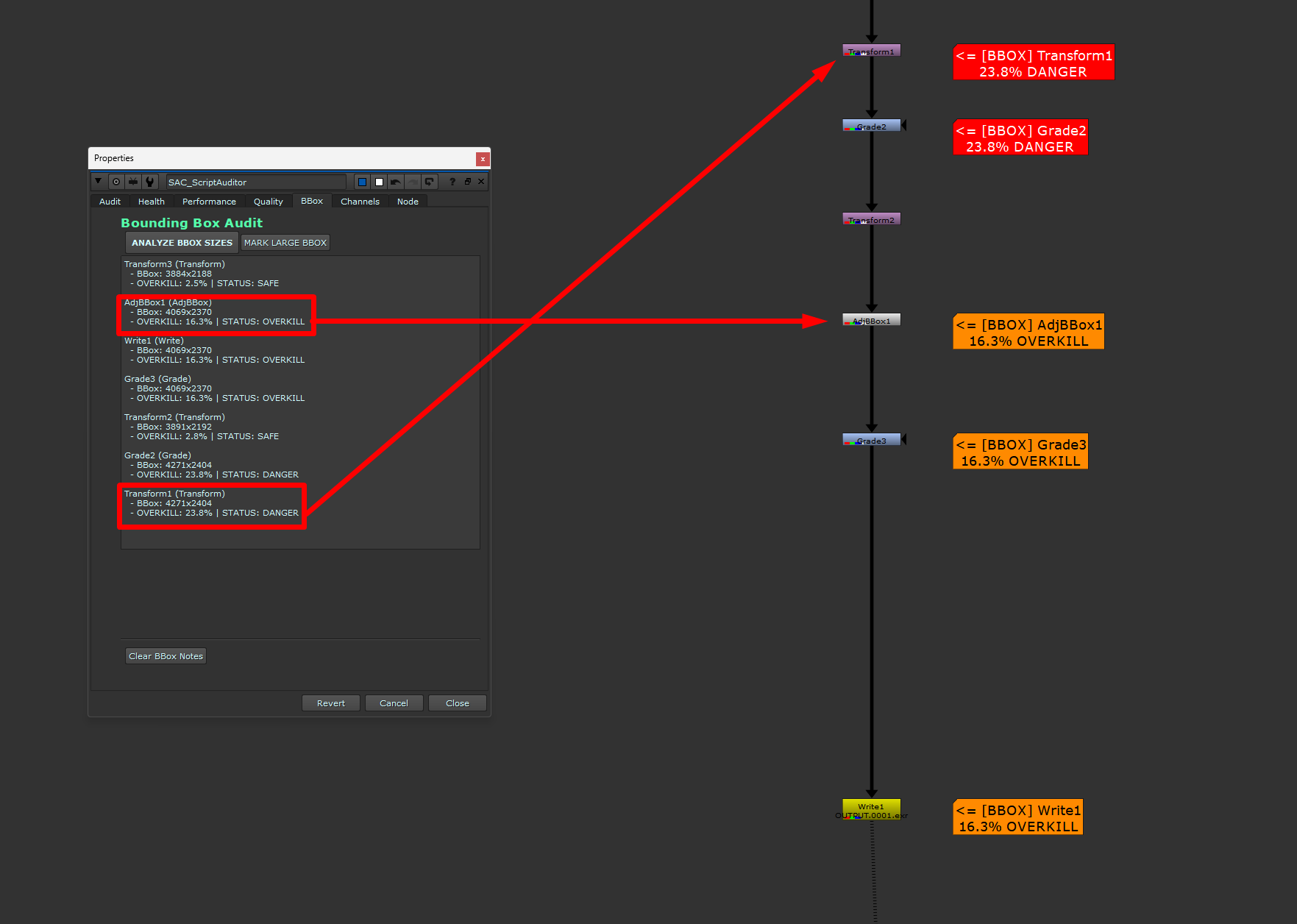
6. Channels Tab
ANALYZE CHANNELS- Lists nodes with more than 4 channels, showing total channel count and layer names.MARK CHANNEL BLOAT- Marks nodes where channel count >8 and either the count exceeds that of its input, or total channels >50, with a[CHANNELS]cyan sticky note.Clear Channel Notes- Removes[CHANNELS]stickies.
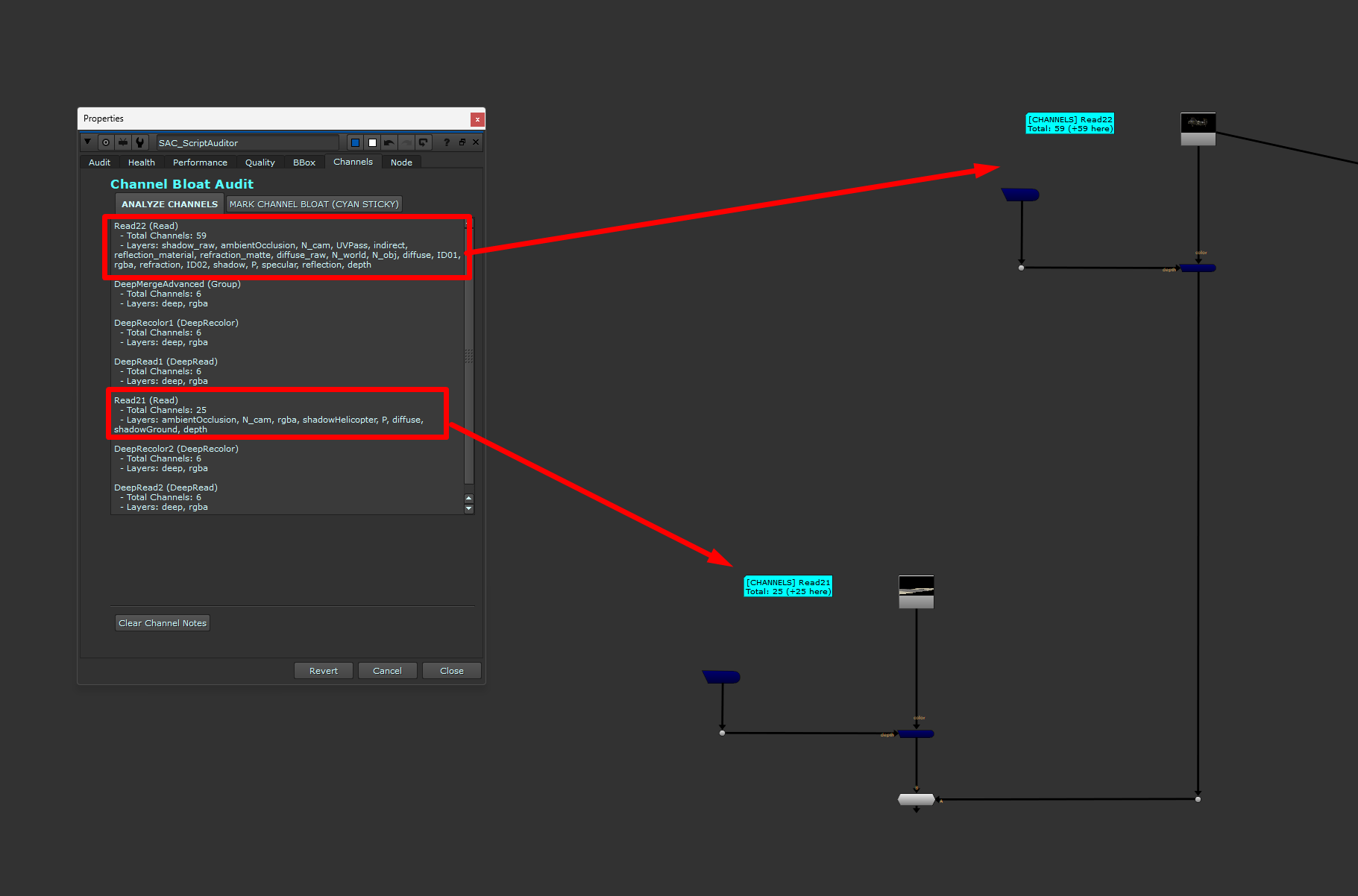
Performance & Best Practices
Delete unused(disabled and floating) nodes which will slow the script.
Heavy nodes (Deep, Kronos, Vector blurs, OFlow, Denoise, etc.) should be pre-rendered or wrapped in a Precomp to avoid repeated expensive calculation.
Concatenation breaks can severely impact performance; always keep transform nodes adjacent in the DAG.
Bounding Box oversizing (DANGER) wastes memory and disk I/O. Use Crop, reformat, or B-Box adjustments to trim.
Channel bloat increases data throughput and storage; remove unnecessary layers with
Removenodes, or setchannelstorgbawhere applicable.Run the auditor after major script changes or before rendering to catch problems early.
Design Decisions and Extensibility
Non-destructive: The auditor only adds read-only sticky notes; it never modifies node knobs, connections, or render behaviour.
Embedded Python: All logic lives inside the NoOp node's user knob commands. This makes the tool portable in a single
.nkfile without external modules.Centralized node exclusion: Dots and the auditor itself are always excluded to avoid self-referencing or clutter.
Clarity — expose hidden script issues instantly
Efficiency — reduce manual debugging overhead
Consistency — enforce clean compositing structures across productions
This architecture ensures that the SAC Script Auditor remains a self-contained, easily shareable, and maintainable diagnostic tool.
Limitations & Known Behaviour
Heuristic-based (not true GPU profiler) Heavy node detection uses a static keyword list. Some third-party plugins may not be flagged unless they contain those keywords. The list can be extended in the code.
Error messages are parsed for common patterns to suggest fixes, but not all Nuke errors are perfectly recognized. The fallback suggests manual inspection.
The SAC_Script Auditor node itself, Backdrop nodes, Viewer nodes, Dots, and Root are automatically excluded from analysis.
Performance Note: Running deep, recursive audits on extremely large scripts (10,000+ nodes) containing nested groups may cause brief UI freezes while the Python interpreter walks the node graph. For these scenarios, we recommend disabling the
Analyze Inside Groupsoption first.
Upcoming Version news
Real time CPU/GPU profiler
Better and in-depth detection
Better fix suggestions
Support & Feedback
SAC_Script Auditor is provided as a free utility for the Nuke community.
Feel free to modify the tool as per your needs.
If this tool has been useful, if there are bug reports and any improvements needed. Please leave a feedback on
If you have suggestions of any repetitive tasks in Nuke which need automation please let me know.
HAPPY COMPING
or register to download or rate.
Comments