Nuke Comp Utilities

This Python script is a pipeline automation utility for Foundry Nuke (used in Visual Effects/VFX production).

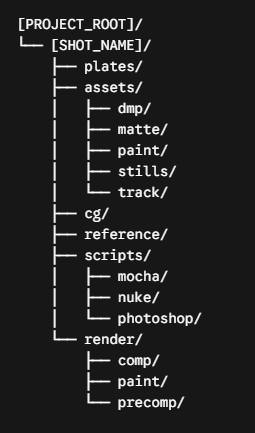
It automates shot directory setup, script versioning, render output (Write node) management, and quick file navigation so compositors don't have to manually create folders, format file paths, or name files.
First submitted: 9 October 2026

Author: sachin kumar

Website: https://kumarsachin.framer.website/

Compatible Nuke versions: 14.0 or later

Compatibility: Windows

🛠️ Main Features (What It Does)

  • Automated Shot Setup (shot_setup)
    Creates the shot folder structure, sets resolution/frame range from the input plate, and saves the Nuke script with proper versioning.

  • Automated Write Nodes (create_write)
    Creates COMP, PAINT, or PRECOMP Write nodes with organized render paths, versions, formats, and channels.

  • One-Click Versioning (version_up_comp)
    Versions up the Nuke script and automatically updates Write node paths to prevent overwriting.

  • Quick Tools
    Copy Read node paths and quickly open shot, render, or Nuke script folders.

🚀How to Use It

1.Installation

Save this script as nuke_comp_utilities.py in your Nuke plugin directory (usually ~/.nuke/).

2.In your menu.py, add:

import nuke_comp_utilities

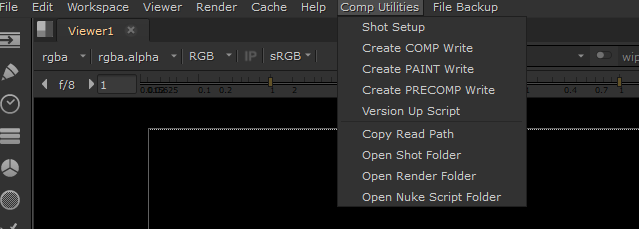
Once loaded, a new top menu bar entry named Comp Utilities will appear in Nuke.

Workflow Steps

[Comp Utilities Menu]

1. Starting a New Shot

  • Open a blank Nuke session.

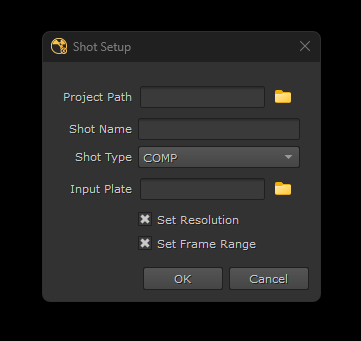
  • Click Comp Utilities > Shot Setup.

Fill in the popup menu:

  • Project Path: Choose the root directory on your workstation/server.

  • Shot Name: Type your shot code (e.g., SH010).

  • Shot Type: Select COMP or PAINT.

  • Input Plate: Browse to your source image sequence (e.g., plate.1001.exr).

  • Click OK. The script will create all subfolders, adjust your project settings to match the plate, and save the Nuke script as SH010_comp_v001.nk or SH010_paint_v001.nk as per selection.

2. Rendering Outputs

  • Select a node in your node graph where you want to attach an output.

  • Go to Comp Utilities > Create COMP Write (or PAINT / PRECOMP).

  • The script generates a Write node connected to your selection with pre- configured render paths, channels, and frame padding (.####.exr).

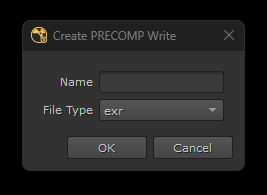
  • When you select PRECOMP, the script opens an interactive popup panel that prompts you for two specific inputs before creating the Write node:

3. Saving Next Versions

  • When you are ready to make a new version of your work, click Comp Utilities > Version Up Script.

  • The script automatically saves SH010_comp_v002.nk and updates the render paths on your Write nodes to output to v002 render folders.

4. Managing Assets

  • Copy Path: Select any Read node and click Copy Read Path to copy its path to your system clipboard.

  • Explore Folders: Click Open Shot Folder, Open Render Folder, or Open Nuke Script Folder to launch your OS file browser directly to those locations.

    ---------

    Note: This script has been tested on Windows. It has not yet been tested on macOS or Linux, but it should be straightforward to adapt if any platform-specific issues arise. The folder structure is also easy to customize or modify to suit your production workflow and project requirements.

or register to download or rate.

Comments

or register to join the conversation.

Download Verification