Editor to adjust the same knob on all selected nodes.
Knob Editor
First submitted: 6 May 2026
Updated: 13 May 2026
Author: Jan Wehrmann
Compatible Nuke versions: 12.0 or later
Compatibility: Linux, Mac, Windows
Knob Editor
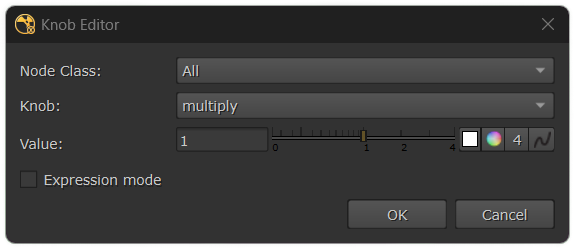
A Knob Editor window build with pyside (pyside 2 and 6 supported).
Features
Dynamic UI
The selected Nuke knob will be sampled and used in the UI to tweak the value.


Restrict to a specific node class
The "Node Class" can be set to edit only the selected nodes matching this class. It also acts as a filter for the "Knob" dropdown.
Expression Mode
Toggling "Expression mode" will replace "Value" with a blank input. It can be used to mathematically modify the value in each node or add prefixes and suffixes.
Installation
Unpack the folder and add it to Nukes plugin path.
Usage
After installation the Knob Editor can be opened through the menu "Edit - Edit knob on multible nodes" or with the shortcut "Ctrl+E" (to change that edit the menu.py).
Select one or more nodes and open Knob Editor.
Specify which node class you want to affect (default is all).
Select the knob you want to edit on the selected nodes (knobs are displayed in alphabetical order).
Adjust the knob (since the default knob is just the first one in the list it may say [Unlinked LinkKnob]. Just change it to any knob that is actually visible on the node).
Hit OK or Cancel to apply the value to all selected nodes or cancel the operation.
Expression Mode
Enable "Expression mode".
The current value in all selected nodes can be modified using <value>.
For numbers: <value>*2
For strings: <value>_02
Changelog
v1.1.0
Bug fixes
Adjust window size
Ignore node position, name and obsolete knobs in the dropdown
Prompt an error when the selected knob can't be sampled
v1.2.0
Expression mode bug fix
or register to download or rate.
Comments