KEY FEATURES
• Supports all major save actions
Works with Save (Ctrl+S), Save As (Ctrl+Shift+S), and Save New Version (Alt+Shift+S).
• Mirrors your folder structure
Example:
C:\Projects\Shot01\comp_v01.nk
→
D:\Projects\Shot01\comp_v01.nk
• Remembers your backup drive
Your selected backup drive is saved and remembered across Nuke restarts and different shots.
INSTALLATION
1. Save nuke_backup.py to your Nuke user directory:
Windows:
C:\Users\<YourUsername>\.nuke\
2. Open or create menu.py inside the .nuke folder and add:
import nuke_backup
3. Restart Nuke.
HOW TO USE
1. SELECT A BACKUP DRIVE
In Nuke, go to: File Backup → Set Backup Drive...
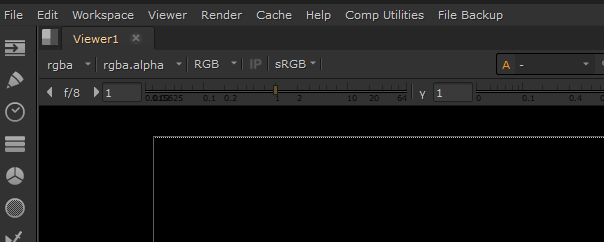
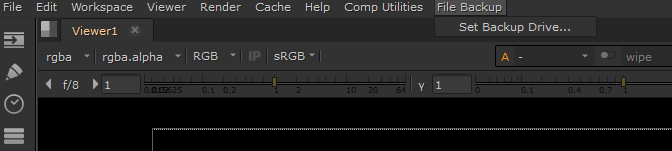
Select the drive you want to use for backups, such as D: or E:, and click OK.
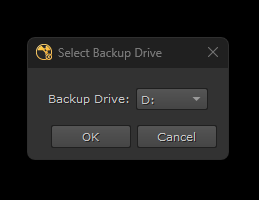
IMPORTANT: Choose a physically separate drive from your main working drive. If your primary drive fails or becomes corrupted, your backup will remain safe on the separate drive.
2. WORK AND SAVE NORMALLY
Once configured, the backup runs automatically in the background.
Save, Shortcut: Ctrl - Backup: Updates the existing backup copy.
Save As, Shortcut: Ctrl+Shift+S - Backup: Creates a backup at the new saved location.
Save New Version, Shortcut: Alt+Shift+S - Backup: Keeps previous versions and creates a matching backup of the new version.
EXAMPLE
Working file:
C:\Projects\Shot01\comp_v01.nk
Backup file:
D:\Projects\Shot01\comp_v01.nk
The folder structure is automatically recreated on the backup drive.
Note: This script has been tested on Windows. I haven’t tested it yet on macOS or Linux, but it should be easy to adapt if any platform-specific issues occur.
Comments